 Qdin
Find the jobs that fit, while they’re still new.
Qdin finds recent openings on employer job boards, shows where your résumé fits, tailors it to the role, and fills in the application for you to review. When an interview invitation arrives, it can update your tracker for you.
From a new posting to an interview, in five stages.
Every screen below is Qdin itself, shown with sample data.
-
1Found
Openings come from the employer’s own job board.
Qdin follows employer career boards hosted on hiring platforms such as Workday, Greenhouse, and Ashby. Here is one employer on each of six platforms.
Hiring platform Employer What’s on its board 
 NVIDIA
Computing and engineering roles. 
 Ramp
Product, engineering, and finance roles at the financial software company. 
 Affirm
Remote openings across engineering, risk, and operations. 
 City of Philadelphia
Public-service careers with city departments in Philadelphia, Pennsylvania. 
 Hot Topic
Corporate roles in California and distribution jobs in Tennessee. 
 Tufts University
Research, clinical, and campus jobs in Massachusetts. Seven days, then it’s gone
Explore keeps a seven-day window. When a board doesn’t supply the original posting date, Qdin can use the board’s update date or the day it first found the role.
One opening, listed once
Qdin checks original job links and employer requisition IDs. When it recognizes the same opening on two boards, it can group those listings together.
-
2Matched
Know why a role made the list.
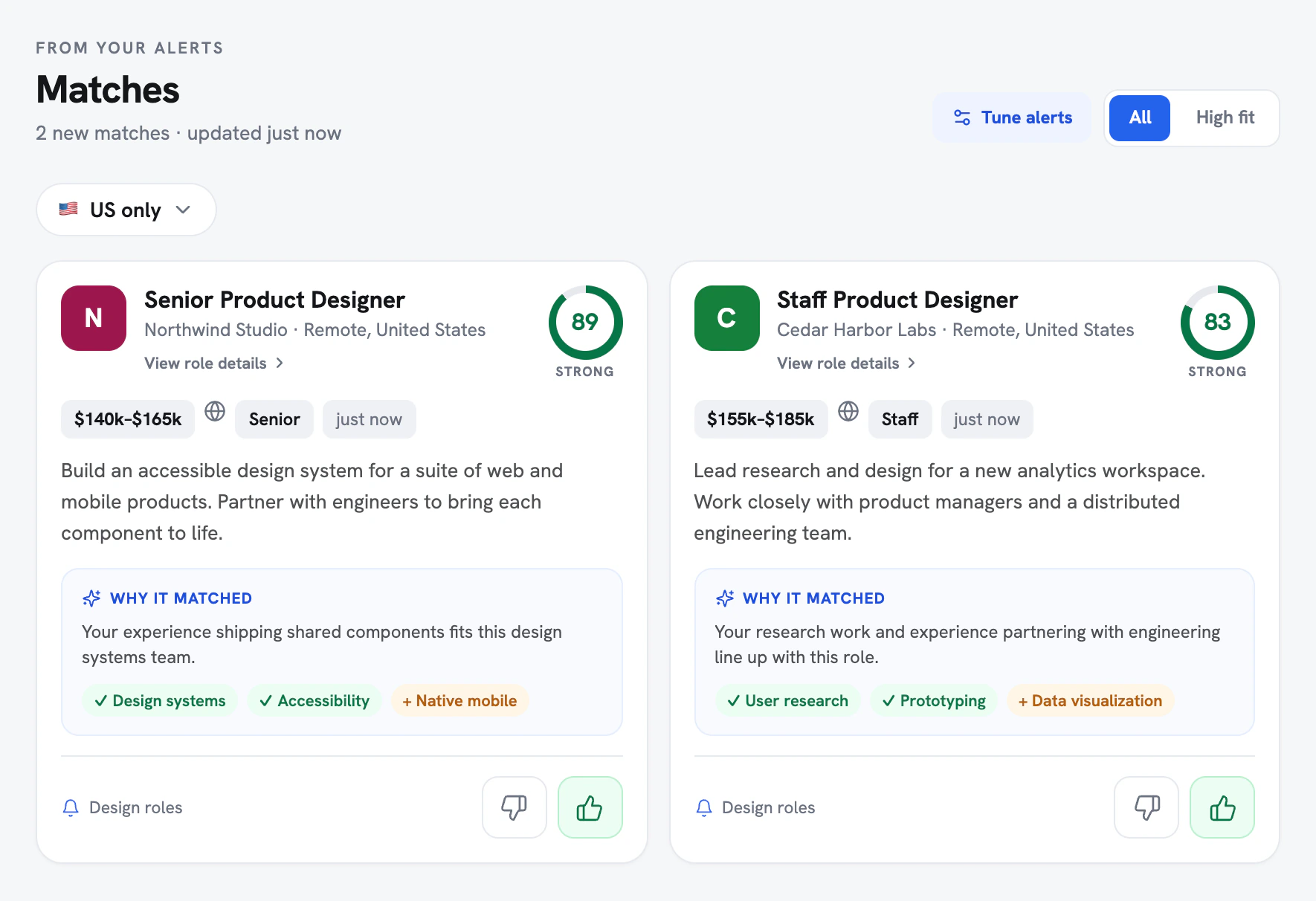
This remote design role calls for experience building shared components. “Why it matched” shows how the designer’s background lines up and where the job asks for something new.
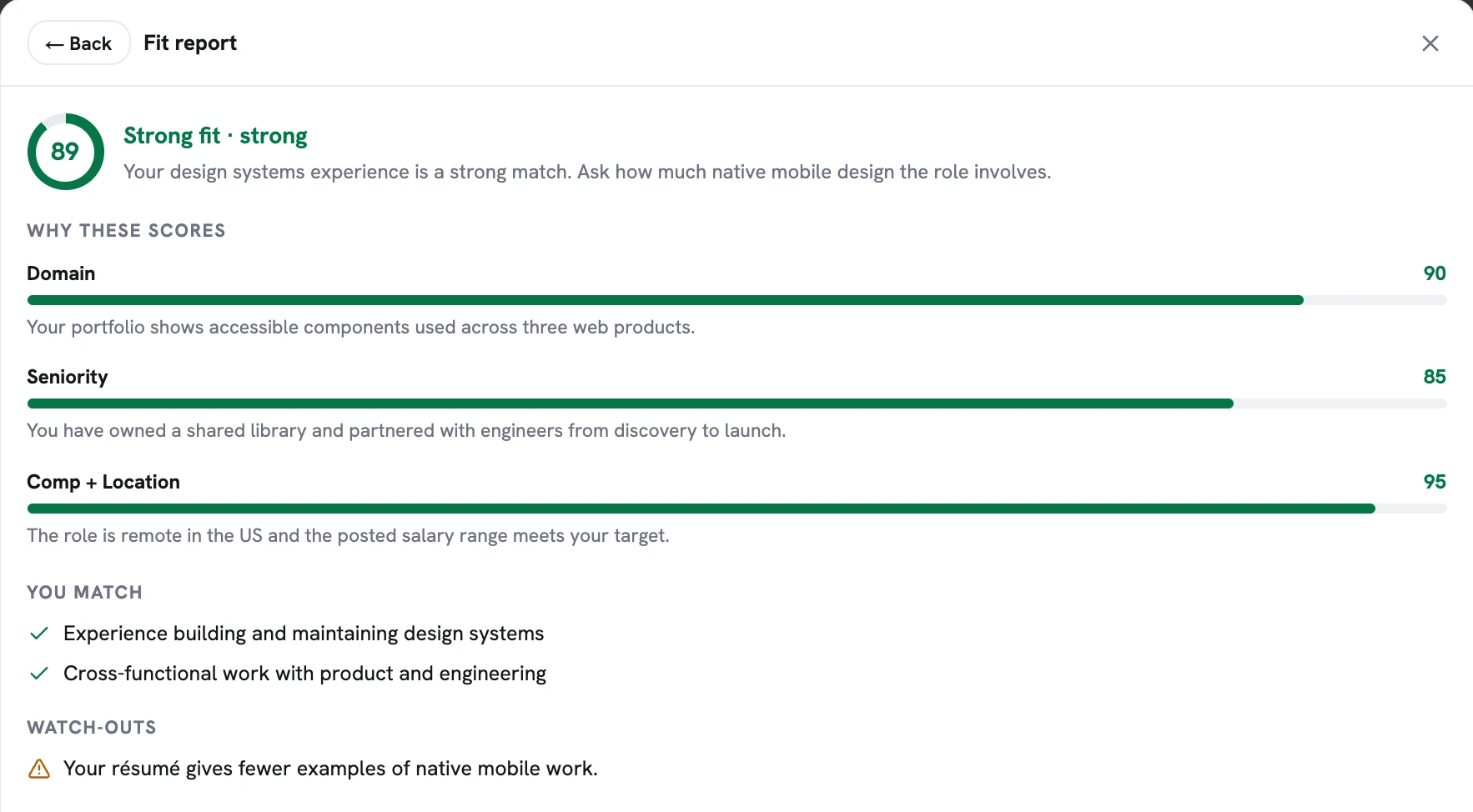
Why did this role score 89?
The sample résumé shows experience building a shared component library. It says less about native mobile work. Qdin’s AI picks up both details, giving you a specific question to ask the team.
-
3Applied
Like a role. Qdin does the form.
For this Houston role, Qdin has filled the form with saved answers and a résumé tailored to the job. Review what the employer will see: open the answers that need attention, request a change, or approve the application.
Qdin can do this for supported roles. Your approval settings determine when it can submit.
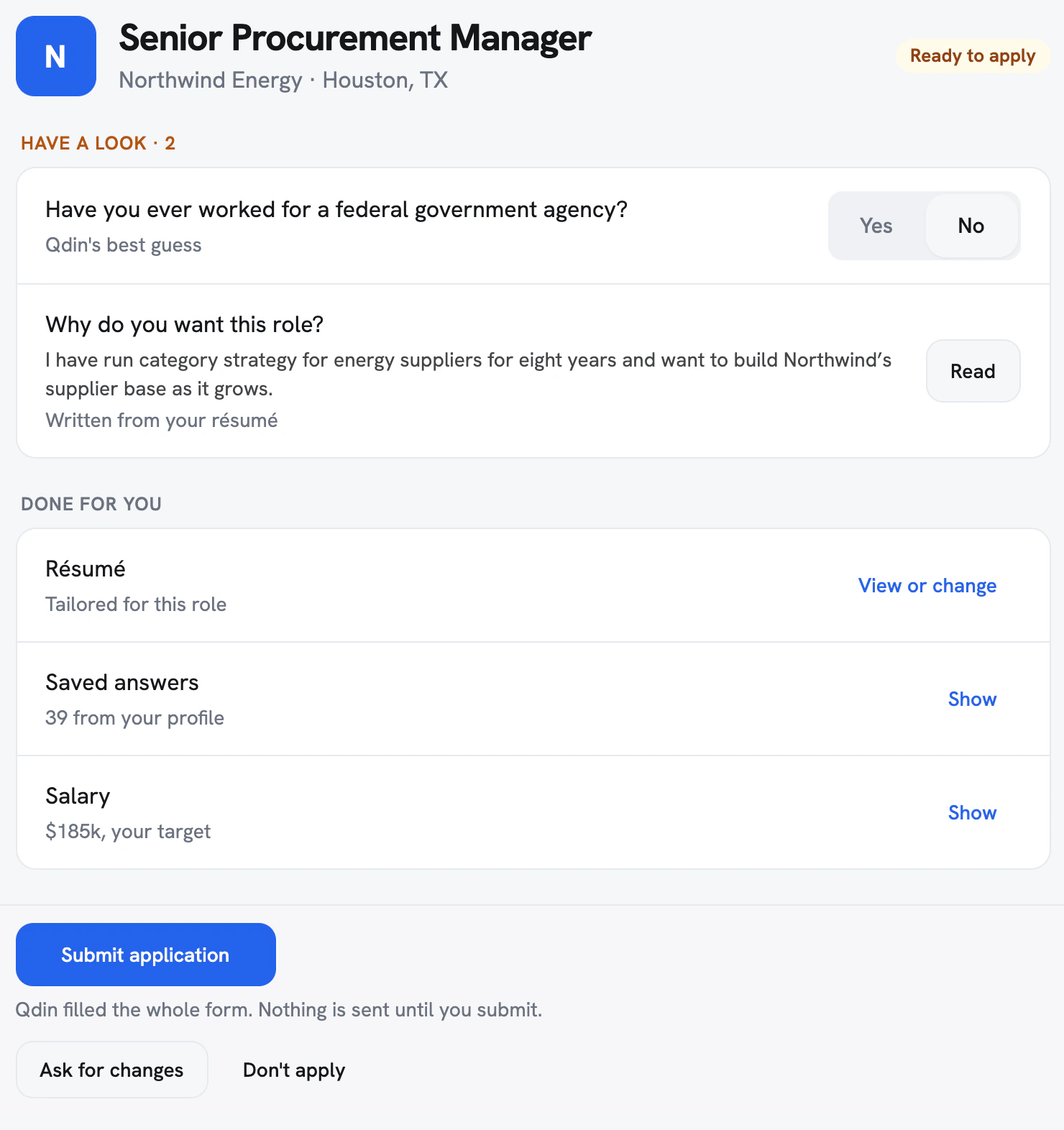
About four minutes of work, and none of it yours
That is how long Qdin typically spends filling in an application, measured across 97 applications in November 2026. Time waiting for your answers, or for its turn, comes on top.
A résumé adjusted to the role
Qdin can tailor your résumé to each job, working from the experience already in it. Open the tailored PDF before anything is sent, or choose another résumé from your library.
-
4Tracked
Pick up where you left off.
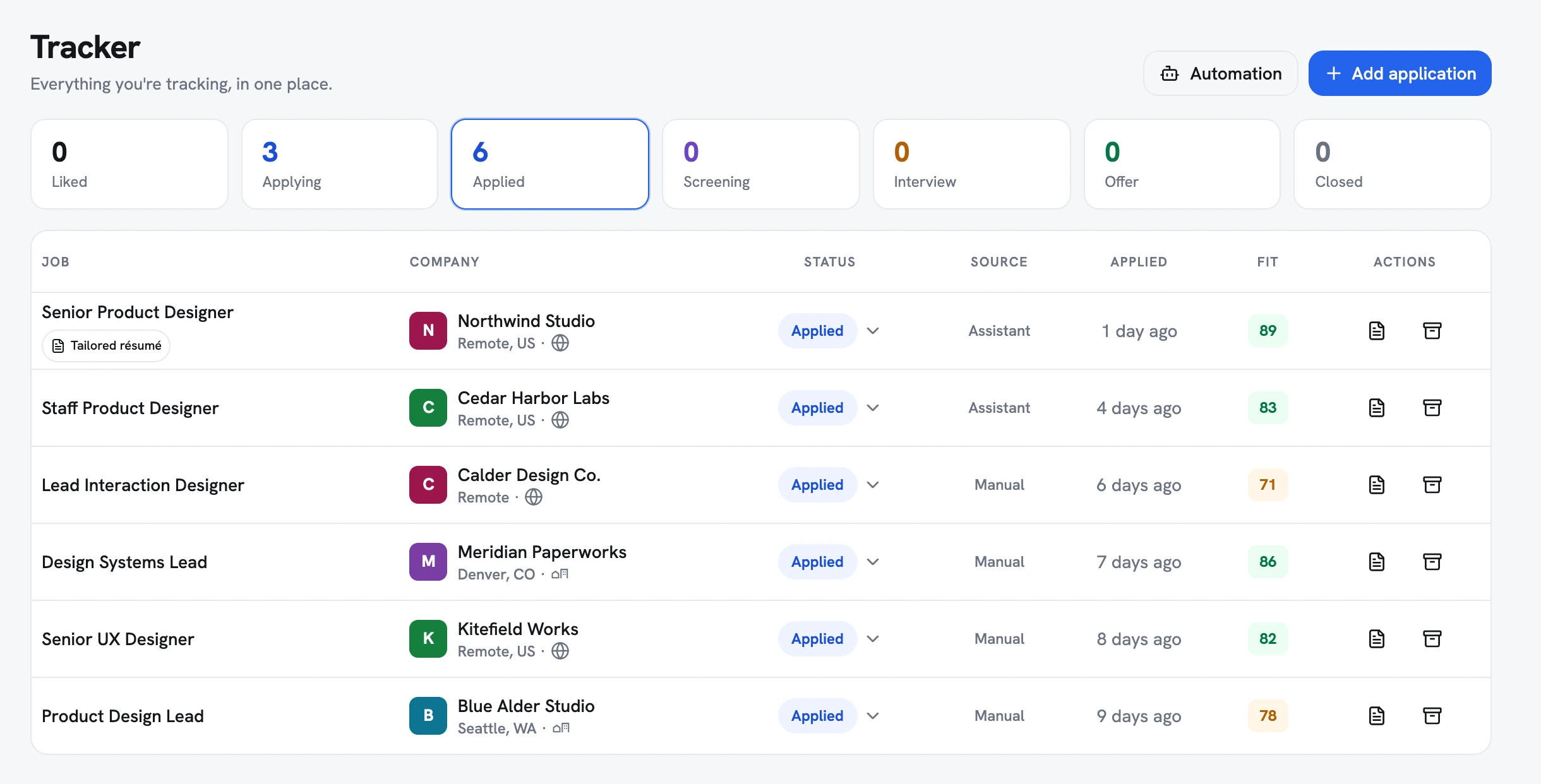
The Northwind Studio role is now marked Applied. Tracker keeps the employer, status, and application date together so you can decide when to follow up.
-
5Interview
The invitation lands, and Tracker already knows.
When Qdin can confidently match an interview invitation to an application, it can move that role into Interview automatically. If two roles could match, you choose which one.
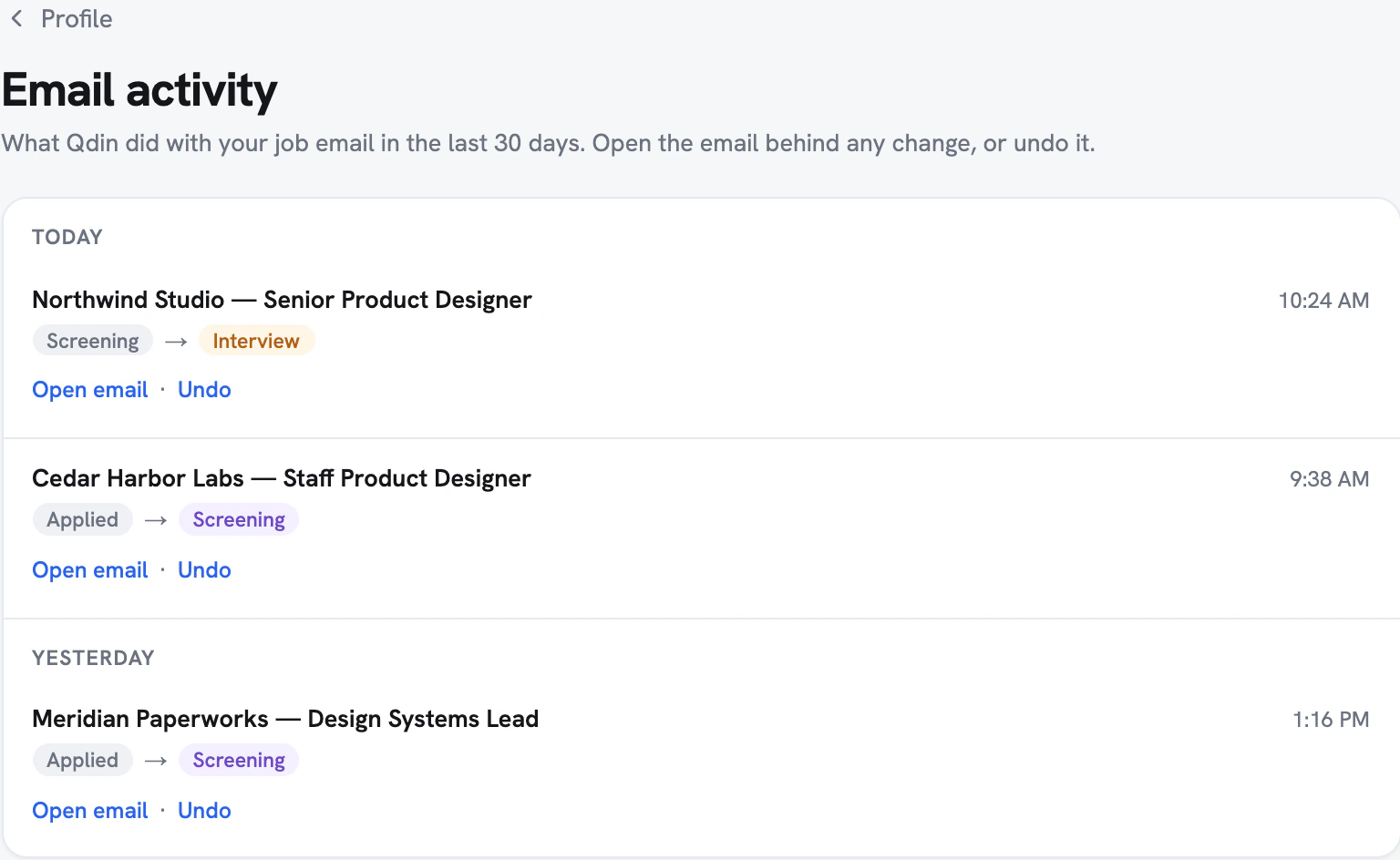
In this example, the invitation moves the role from Screening to Interview. The activity record keeps the email and an Undo option together. 
Connect Gmail with read-only access
You can also forward individual hiring emails to your personal Qdin address. A confirmation can add an application you submitted outside Qdin.
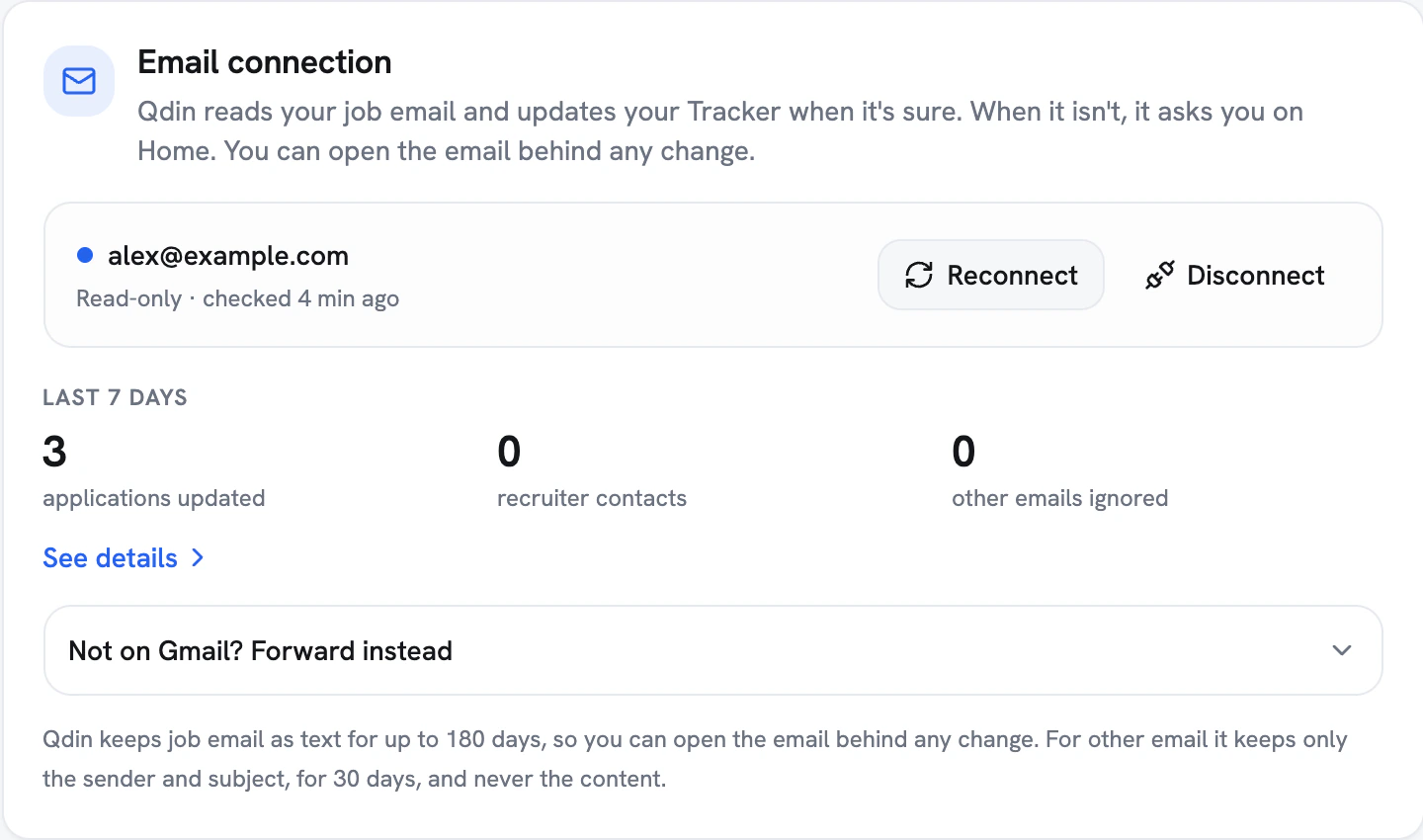
Manage your Gmail connection and find your personal forwarding address in Qdin.
Make it your search.
Choose where you work
Set preferred locations, your salary floor, and whether you’re open to remote, hybrid, or on-site work.
Teach Qdin your taste
Like roles you’d pursue and pass on the rest. With enough feedback, Qdin learns which opportunities you tend to prefer.
Keep multiple résumés
Upload different versions for different kinds of work. For supported applications, Qdin can select a résumé from your library.
Qdin on your iPhone.
A role posted this morning shouldn’t wait until you’re back at a desk. The iPhone app brings your matches, your tracker, and your applications with you.
Matches as notifications
Get a notification when new matches are ready. Like or pass from the lock screen, or open the role and read its résumé FIT report.
Share a job into Qdin
Found a role in another app? Share its link to Qdin and it joins the roles you’ve liked.
Your tracker in your pocket
See every application in one place, and get a notification when one changes.
Qdin for iPhone is in beta through TestFlight for members. It needs iOS 27 or later.
Good to know.
How do I join Qdin?
Qdin opens new accounts by invitation. Join the waitlist and we’ll email you when there’s a place for you. If you’ve been invited, use your personal invite link to get started. Join the waitlist.
Where do the openings come from?
Qdin follows employer career boards hosted on applicant tracking systems such as Greenhouse, Workday, and Ashby. See an employer on each platform.
Is there an iPhone app?
Yes. Qdin for iPhone is in beta through TestFlight for members, and needs iOS 27 or later. It sends a notification when new matches are ready and lets you share a job link from another app into Qdin. More about the iPhone app.
Can I start without a résumé?
Yes. You can skip the résumé during onboarding and set your preferences. Add one later when you want Qdin to compare your experience with a job description.
Can Qdin help me apply?
For supported roles, Qdin can select one of your uploaded résumés and fill in the application. Your approval settings determine when it can submit.
Join the waitlist.
Qdin opens new accounts by invitation. Leave your email and we’ll write when there’s a place for you.